Configure your project
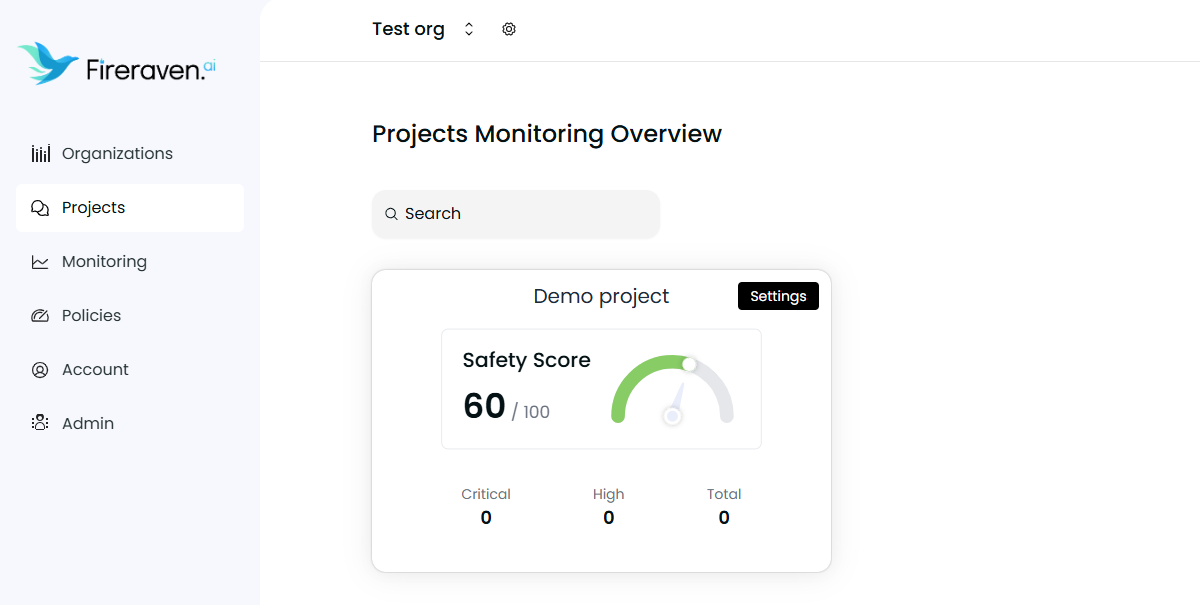
To configure your project, first hover on a project in the Project page and click on the Settings button. It will redirect you to the Project Settings page.
Multiple tabs are presented to you. We will go over each.
At the top right of the Project Settings page you can see a "Try it out" button. It is for you to try the guardrails in a sandbox. More info here.
Anytime you do a modification in the project configuration it's automatically saved.
General
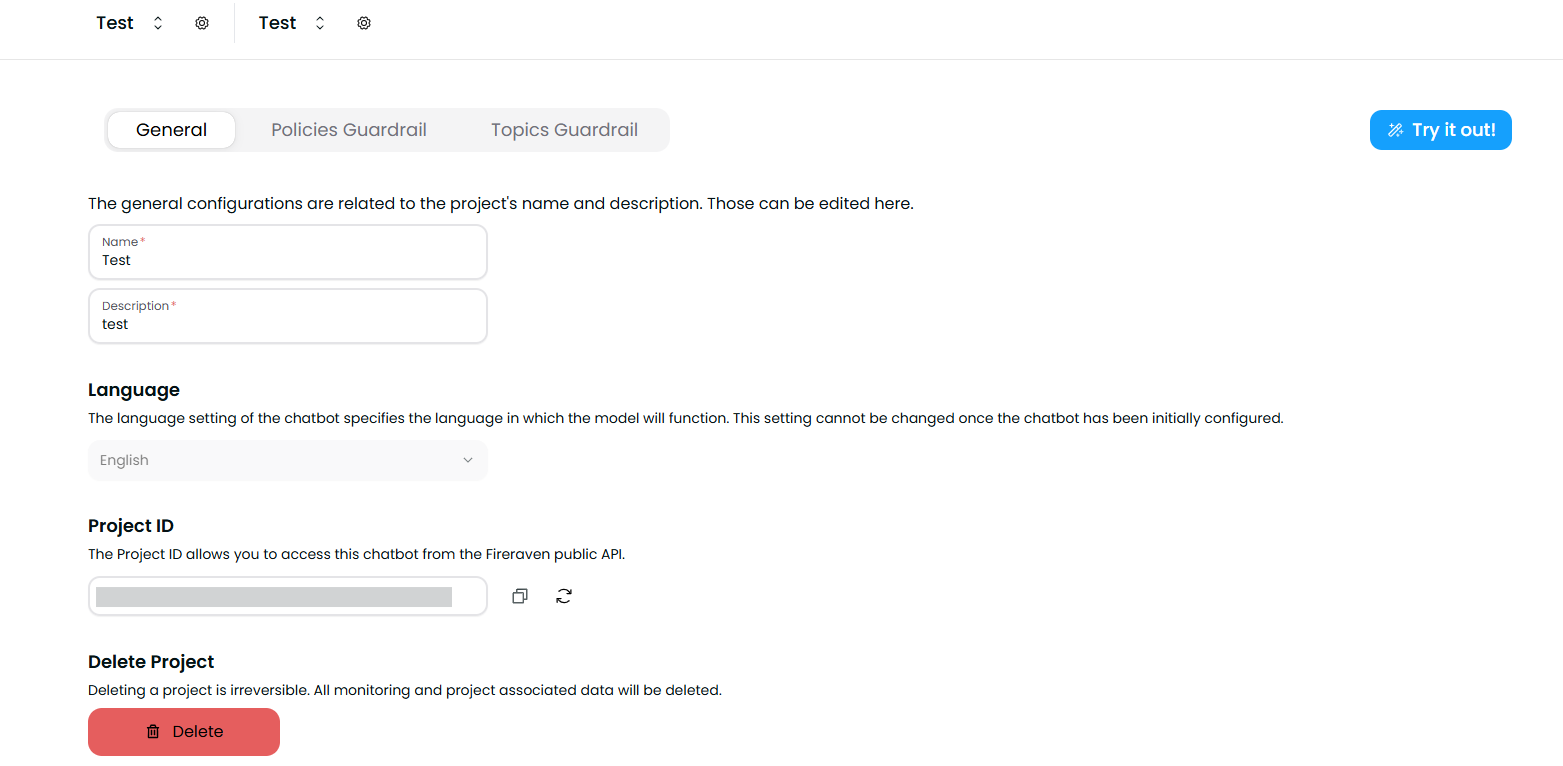
The general tab is for all general configurations of your project.
Name and Description
Here, you can edit the name and description of the project.
Language
You can see the selected lanugage for your project. This option cannot be changed after the project creation.
Project ID
You can see the Project ID of your project. This ID is how you can reference your project in the FireGuard API.
You can regenerate your Project ID if needed by clicking the regenerate icon. Carefully read the warning and confirm the action. You can also copy the Project ID to your clipboard.
Regenerating a Project ID will make the old Project ID invalid. If any deployed project integrated with the FireGuard API is in use, it will stop working until the new Project ID is provided to it.
Delete project
To delete a project, head to bottom of the General tab. Click the delete button, then confirm your choice.
Deleting a project is permanent and cannot be reverted once confirmed.
Policies Guardrail
The Policies Guardrail tab is where you can attach policies to your project.
To create or edit policies, look at this page.

Here you can see all policies attached to this project.
You can search for existing policies, add a policy (from the existing list), or create a new policy.
You can also configure if the policies are to be applied to the Input or Output Guardrails or both.
For example, a policy only applied to the input will only be triggered if the input message (from the user, sent to the assistant) violates the policy, but the policy won't look at the output message (from the assistant, back to the user).
Topics Guardrail
The Topics Guardrail tab allows you to configure how your project handles different topics. The topics define what your LLM can and can't discuss about. There are:
- Safe Topics (considered safe to address by your LLM)
- Unsafe Topics (considered unsafe to address by your LLM, they will be blocked)
- All the other possible topics (considered unsafe to address by your LLM, they will be blocked)

Create a topic
To create a new topic, click on the Create new topic button.

Don't forget to save your topic after creating or editing it.
Name (mandatory)
To configure a topic, you first need to add a Topic name.
Topic Context Prompt (mandatory)
You need to add a Topic context prompt. The context prompt is used to give more details about the context of the topic you want to configure.
Questions (mandatory)
The questions are used as data points to map the possible requests that are considered within this topic. The questions will allow to Topics Guardrail to perform better at classifying the requests from the user as safe or unsafe. You need a minimum of 1 question per topic.
The Questions can be configured in 3 ways:
- By adding a question manually
- By generating questions automatically (the FireGuard platform will generate questions based on the Topic context prompt to map the possible questions a user could ask for this topic)
- By uploading questions directly from a CSV file
It is important to mention that a user doesn't have to write word for word the question so your project can answer it. FireGuard is looking at the semantic of each question, so if the meaning of the question is close enough to a question in a Safe Topic, then the question will be considered safe. This way, by selecting relevant questions, FireGuard can cover most of the possible questions your users could ask and thus ensuring they get an appropriate answer, without compromising the safety of the project.
In order for the import from CSV to work properly, you will need a column with the name 'sentence' containing the questions to import.
Validation Questions (mandatory)
The validation questions are used to measure the accuracy of a topic, by "simulating" questions that could be asked by a user. You need a minimum of 1 validation question per topic.
The Validation questions can be configured in 3 ways:
- By adding a validation question manually
- By generating validation questions automatically (the FireGuard platform will generate validation questions based on the Topic context prompt to simulate real questions that could be ask by a user in a real-life scenario)
- By uploading questions directly from a CSV file
In order for the import from CSV to work properly, you will need a column with the name 'sentence' containing the questions to import.
On the right panel of the topic configuration, you can set some additional parameters:
Applied to Input
A toggle to configure if the topic is applied to the Input Guardrails (on) or not (off)
Safe/Unsafe
A toggle to configure if the topic is safe or unsafe
Sensitivity
A slider to configure how permissive or restrictive the topic should be (A more permissive setting allows requests that differ more from the original questions. A more restrictive setting blocks requests that aren’t sufficiently similar.)
You can modify the sensitivity after you have provided questions and validation questions. This will allow you to see how the accuracy change (how many validation questions can be answered).
Accuracy
The accuracy is measured as the percentage of Validation Questions (simulating real users) that can be answered from the list of Questions, with the Sensitivity configured
Once the configuration of the topic is done, click on Save
Deleting a topic
From the topics selection window, click the topic you wish to delete, then click the Delete button on the top right.
Deleting a topic cannot be undone once it has been confirmed.